
Description
Ink's on-prem sheet data functionality, Omnivex DataStack, was originally developed for airport and other mission-critical clients to allow Ink-based displays to obtain real-time data in the event of an Internet connection interruption.
Omnivex DataStack relies on the following components:
- Private network
- Server running Windows Server 2019 or higher (2 servers recommended for HA)
- Ink On-Prem Sheets REST API Service
- Ink On-Prem SignalR Service
- NGINX
- Omnivex Moxie software components for data acquisition and user interface
- TLS certificate (typically procured and managed by customer in accordance with customer’s infrastructure preferences)
- DNS server
- DataPipe 7 Server
- A customer-provided method of load balancing to allow for failover (active/active or active/passive) in accordance with customer’s infrastructure preferences. Customers may choose to use 2 load balancers for high availability.
Ink Displays make REST API requests and SignalR connections to the on-prem server through the private network on port 443. Ink Displays use the server's FQDN and route to it using the IP address registered in the DNS server.
All communication is HTTPS and WSS and is secured with the TLS certificate.
DNS Configuration
The Windows Server machines that host DataStack and all displays that connect to those servers must use a DNS server that provides an A record that maps the chosen FQDN for the Windows Server machines to the IP address for the Windows Server machines.
The DNS server should be accessible within the customer's network but should not be accessible by the public Internet. Similarly, the Windows Server machines should have a private static IP address within the customer's network but should not be accessible by the public Internet. Ensure the DNS server resolves to the virtual IP of the load balancer.
Certificates
The TLS certificate used by DataStack must be signed by a root Certificate Authority that is trusted by the display. The certificate subject, or Common Name, “CN” and Subject Alternative Name “SAN” must have an entry for the FQDN used to access the server or must provide a wildcard that matches the FQDN used to access the server. Omnivex requires that the customer provide both the .KEY and .CERT file for proper configuration.
Please note that some System-On-Chip displays don't recognize some modern certificate authorities, such as Let's Encrypt.
Ports
NGINX listens on port 443 to receive the requests and SignalR connections. NGINX provides TLS termination and uses a reverse-proxy to make requests to the appropriate Ink services running on the same server. The Moxie Data Server connects to the DataPipe Server via its port (9091 or 14000).
Failover
The failover capabilities for DataStack can be configured by the customer’s networking group. The two servers can be set to active/active or active/passive depending on the customer’s preference. A load balancer should be implemented to switch over, in the case of active/passive, in the event of a failure of the primary DataStack server.
Configuration of the load balancer (or 2 load balancers for high availabiiity) is at the customer’s option as long as it allows for the failover to be achieved from one DataStack server to the other DataStack server in the event one server becomes unavailable.
At a high level, the following diagram depicts the use of a load balancer for failover in a DataStack installation.
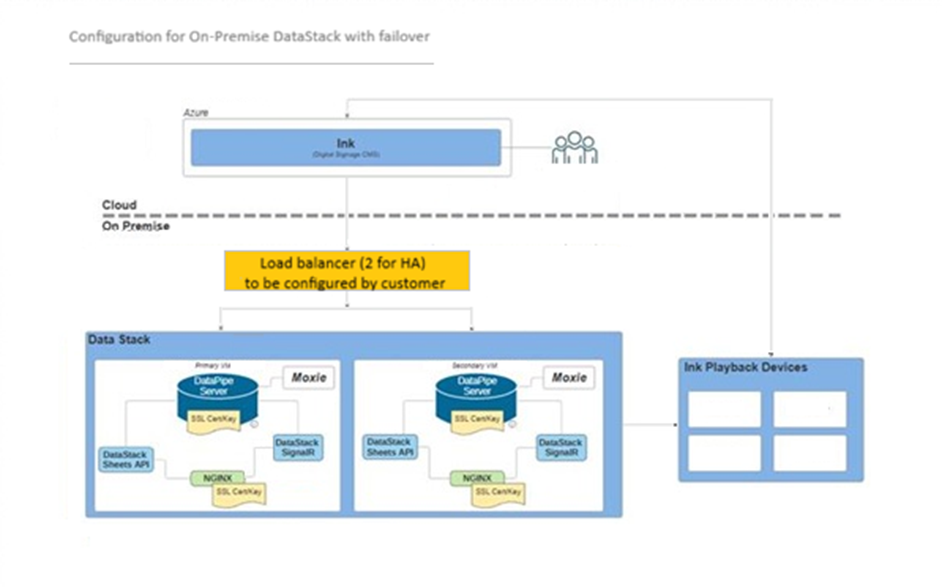
Suggested steps and requirements for failover configurations have been included below. Some customers choose to provide two load balancers for additional security in the event one load balancer fails.
Steps and Requirements for Failover and High Availability Configuration
1. Set up the DataStack instances
Deploy two DataStack instances, each with a unique static IP address. Then choose one of the following SSL configurations:
a. SSL termination at the load balancer (recommended)
- Load balancer handles HTTPS termination; DataStack instances are HTTP endpoints: Client (HTTPS) --> Load Balancer (terminates SSL) --> HTTP --> DataStack.
- Simplifies certificate management — only the load balancer requires a public SSL certificate.
- Nginx configured for HTTP.
b. End-to-end encryption with SSL passthrough
- Load balancer passes HTTPS traffic directly to the DataStack instances: Client (HTTPS) --> Load Balancer (passthrough) --> HTTPS --> DataStack
- Requires CA-signed certificates on each DataStack instance.
- Nginx configured for HTTPS
Note: Certificates must be publicly trusted; self-signed certificates are generally insufficient if working with System-on-chip (SoC) devices.
2. Configure the load balancer
Depending on your SSL choice:
a. Load balancer terminates SSL (for 1a)
- Deploy the load balancer in front of both DataStack instances.
- Configure the load balancer with FQDN and static IP address.
- Install the public SSL certificate on the load balancer.
- Configure traffic forwarding to DataStack HTTP endpoints.
b. SSL passthrough (for 1b)
- Deploy the load balancer in front of both DataStack instances.
- Configure the load balancer with FQDN and static IP address.
- Configure traffic to be passed directly to the DataStack HTTPS endpoints without terminating SSL.
- Ensure each DataStack has a valid CA-signed certificate.
3. Choose the load balancing mode
Configure the load balancer in one of the following modes:
a. Active/passive
- One DataStack instance handles all traffic.
- The load balancer automatically redirects traffic to the secondary instance if the primary becomes unavailable.
b. Active/active
- Both DataStack instances handle traffic concurrently, sharing the load.
4. Configure data sources
Ensure all data sources feed both DataStack instances independently, so failover does not cause data gaps or loss.
5. Configure Ink clients to connect via the load balancer FQDN
When configuring DataStack in Ink, use the load balancer’s FQDN as the connection endpoint for clients.
Additional Notes: Your networking team may use any load balancer or configuration that achieves seamless failover between servers. Verify that health checks or probes are configured so the load balancer can detect when a server becomes unavailable.
An Example of an Active/Passive Load Balancer Set up:
While our recommended setup is to configure SSL termination at the load balancer, we have provided an example of setting up DataStack with an active/passive load balancer using end-to-end encryption with SSL passthrough.
For purposes of this example, Linux was chosen as the operating system of the load balancer. The two third-party products suggested below, HAProxy and Keepalived, serve to provide health checks. Any other products that provide similar functionality can be substituted according to the customer’s preference and computing environment.
1. Set up DataStack instances with end-to-end encryption with SSL passthrough
- Deploy two DataStack instances, each with a unique static IP address.
- Load balancer passes HTTPS traffic directly to the DataStack instances: Client (HTTPS) --> Load Balancer (passthrough) --> HTTPS --> DataStack.
- Requires CA-signed certificates on each DataStack instance.
- Nginx configured for HTTPS.
Note: Certificates must be publicly trusted; self-signed certificates are generally insufficient if working with SoC devices.
2. Configure the load balancers with SSL passthrough
- Deploy the load balancer in front of both DataStack instances. In this example, Linux is being deployed on the VMs.
- Configure the load balancer with FQDN and static IP address.
- Configure traffic to be passed directly to the DataStack HTTPS endpoints without terminating SSL.
- Install HAProxy & Keepalived on each of the Linux load balancer VMs.
- Configure Keepalived to broadcast a Virtual IP address (VIP).
3. Configure the load balancer in active/passive mode
- One DataStack/load balancer instance handles all traffic.
- The load balancer automatically redirects traffic to the secondary instance if the primary becomes unavailable.
- Keepalived conducts health checks on each of the load balancers. If the master load balancer goes down, the backup becomes the master load balancer.
- HAProxy conducts TCP health checks on ports 443, and 9091 (or 14000 depending on DataPipe setup) on both of the DataStack VMs. If it detects that the master DataStack has issues with any of the health checks, it redirects all traffic to the backup DataStack.
4. Configure data sources
Ensure all data sources feed both DataStack instances independently so failover does not cause data gaps or loss.
5. Configure Ink clients to connect via the load balancer FQDN
When configuring DataStack in Ink, use the load balancer’s FQDN as the connection endpoint for clients.
Suggested System Requirements for DataStack VMs
The following specs can be used as a guideline for DataStack VMs based on a mid-sized airport environment. For additional information, please contact the Omnivex Professional Services team to discuss your computing environment to ensure adequate resources and appropriate configurations of VMs.
- Windows Server 2019+
- vCPU 4
- Storage 256 GB
- Memory 8 GB RAM